


Add Shared Calendar in Outlook Desktop

Jan 13, 2026
 33
33
Add Shared Calendar in Outlook Desktop
Steps:
-
Open Microsoft Outlook.
-
Click the Calendar icon on the left-hand navigation pane.
-
On the Home tab, click Add Calendar.
-
Select Open Shared Calendar.

-
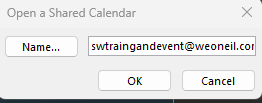
Search for the Shared Calendar.
Example:
-
Click OK.
-
The Shared Calendar will appear under Shared Calendars.

